- Use
BoxDecorationwith aDecorationImagefor a plain background, and aStackwithPositioned.fillwhen you need blur, animation or loading states. - Pick
BoxFit.coverfor full-screen backgrounds andImageRepeat.repeatonly for small seamless tiles. - A full-screen image on a 3x phone decodes to about 12 MB. Decode it at screen size with
ResizeImageorcacheWidth. - Put the background outside the
Scaffold, or the keyboard will squash it.
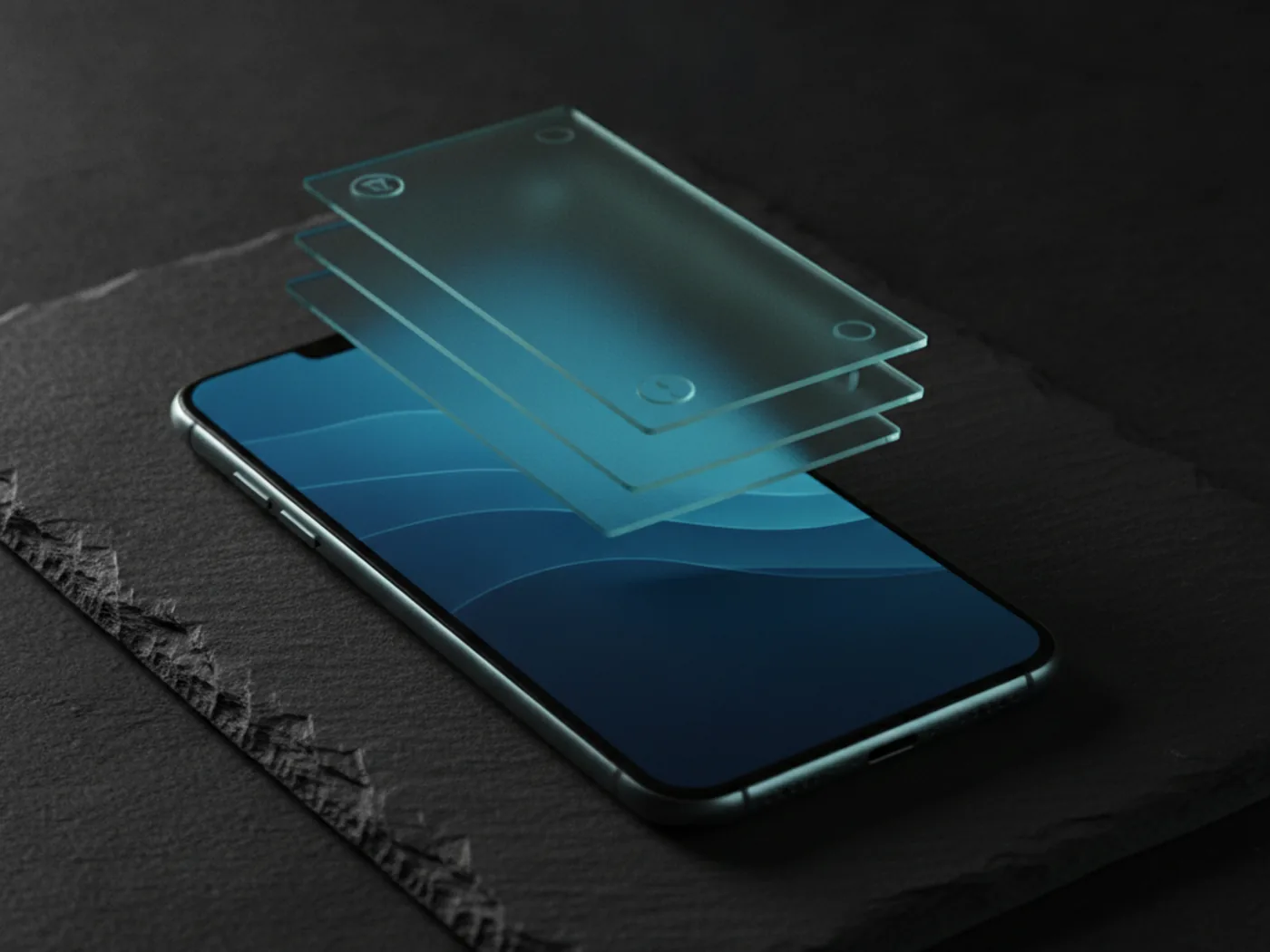
Flutter has no background-image property. A background is just an image painted behind other widgets, and the framework gives you two ways to do it: a DecorationImage inside a BoxDecoration, or an Image placed at the bottom of a Stack. This guide shows both, then covers what decides whether the result looks sharp and runs smoothly: fit, memory, overlays, the keyboard, dark mode and splash screens.
The checks are the same whether you build the screens in-house or work with a flutter app development company. Every background has a pixel size, a memory cost and a contrast problem, and you can measure all three before release.
If you have read our guide to background images in React Native, much of this will look familiar. The budgets are the same. Only the widgets change.
Should you use DecorationImage or a Stack?
Start with DecorationImage. Move to a Stack when the background needs to do more than sit there.
| Need | DecorationImage | Stack + Image |
|---|---|---|
| Static full-screen or card background | Yes, simplest code | Works, more code |
| Tint or overlay | colorFilter or opacity | Separate overlay widget |
| Seamless tiling | repeat property | repeat on Image |
| Blur, fade-in, parallax | No | Yes |
| Loading and error widgets | onError callback only | loadingBuilder, errorBuilder |
| Rounded corners | borderRadius on the same decoration | Wrap in ClipRRect |
Both paint the same pixels. The choice is about how much control you need, not about quality.
How do you set a background with BoxDecoration?
Give a Container a BoxDecoration whose image is a DecorationImage. The child draws on top.
Container(
  decoration: const BoxDecoration(
    image: DecorationImage(
      image: AssetImage('assets/images/bg-linen.jpg'),
      fit: BoxFit.cover,
    ),
  ),
  child: const Center(child: Text('Welcome')),
)
Three details catch people out:
- Register the file. List the image, or its folder, under
flutter: assets:inpubspec.yaml. A missing entry gives a blank box and an error in the log. - The box needs a size. A
Containerwith a child shrinks to the child. For a full-screen background, wrap the screen body or useSizedBox.expand. - Rounded corners go on the decoration. Add
borderRadiusto the sameBoxDecorationand the image is clipped with it.
The DecorationImage reference lists the rest: alignment, repeat, colorFilter, opacity, scale, filterQuality and onError. alignment matters more than it looks. It decides which part of the image survives a crop.
When is a Stack the better choice?
Use a Stack when the background is a widget in its own right: blurred, animated, faded in, or swapped at runtime. The image goes first, so it paints at the bottom.
Stack(
  children: [
    Positioned.fill(
      child: Image.asset(
        'assets/images/bg-linen.jpg',
        fit: BoxFit.cover,
        excludeFromSemantics: true,
      ),
    ),
    const Positioned.fill(
      child: ColoredBox(color: Color(0x73000000)),
    ),
    const SafeArea(child: HomeContent()),
  ],
)
Positioned.fill stretches the image to the size of the stack. excludeFromSemantics keeps a decorative texture out of the screen reader. The overlay in the middle is black at 45 percent opacity (0x73).
To blur the background itself, wrap the image in ImageFiltered with ImageFilter.blur. Keep BackdropFilter for small frosted panels: it blurs whatever is behind it on every frame, and it costs more on full-screen areas.
Which BoxFit should a background use?
Use BoxFit.cover for nearly every full-screen background. It scales the image evenly until the box is full, then crops the overflow. Flutter has seven values in total:
| BoxFit | What it does | Use it for |
|---|---|---|
cover | Fills the box, keeps the ratio, crops the rest | Full-screen and hero backgrounds |
contain | Fits the whole image, leaves empty bands | Artwork that must not be cropped |
fill | Stretches width and height separately | Flat colors and soft gradients only |
fitWidth | Matches the width, may crop top and bottom | Header bands |
fitHeight | Matches the height, may crop the sides | Tall side panels |
none | Natural size, centered, cropped | Small marks on a solid color |
scaleDown | Like contain, but never scales up | Logos and icons, rarely backgrounds |
Plan for the portrait crop
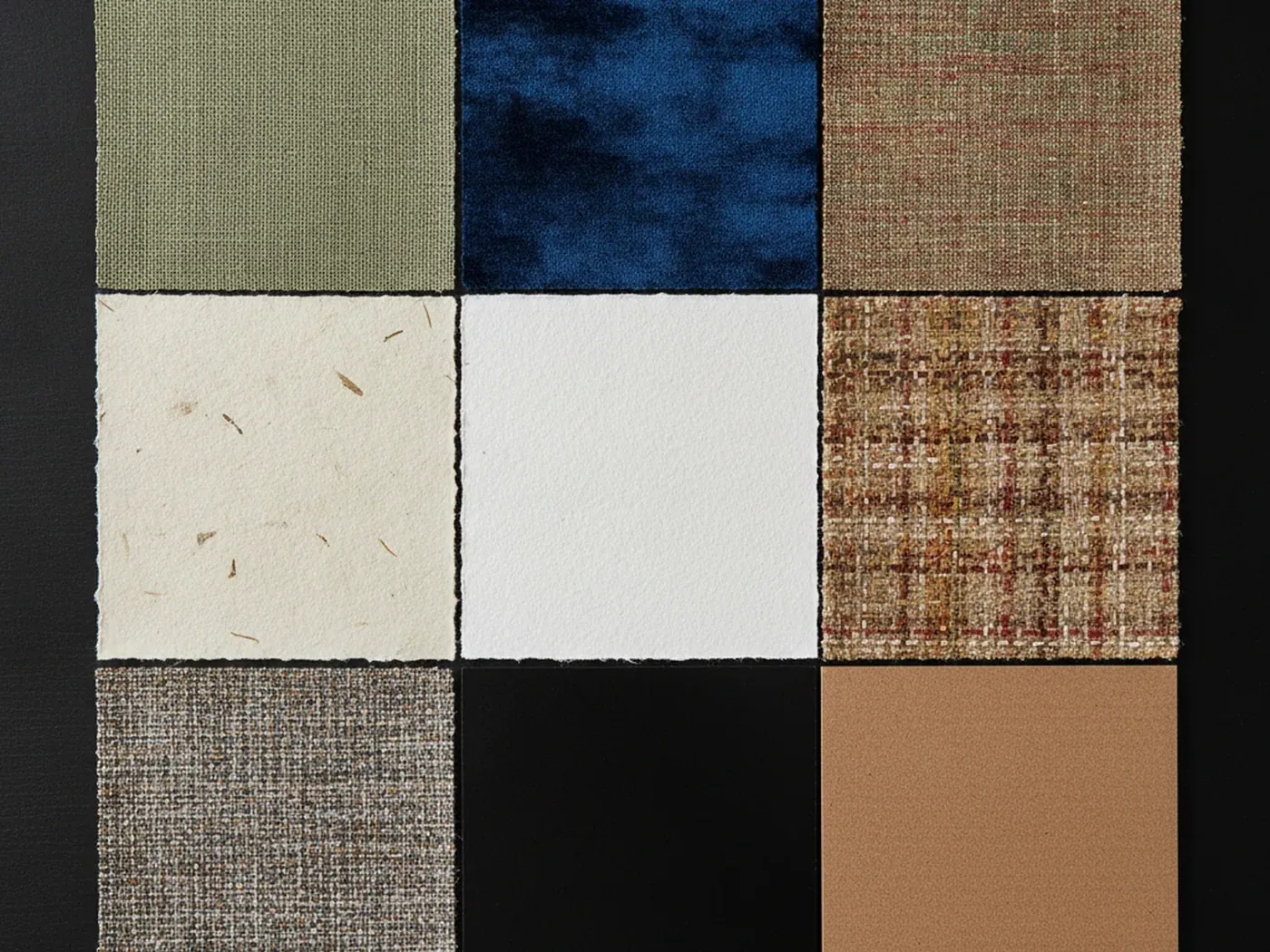
Phones are tall. A 4:3 file such as our 1600×1200 backgrounds loses its left and right edges on a portrait screen. Keep the important part near the center, or pick a pattern with no focal point. Calm surfaces like the linen fabric texture or soft gradient mesh backgrounds survive any crop.
Tile only true seamless textures
Set repeat: ImageRepeat.repeat and leave fit empty. The tile is drawn at its own size divided by scale, so a 512-pixel tile with scale: 2.0 repeats every 256 logical pixels. The tile has to be made to repeat, as our guide to seamless tileable textures explains.
How big should the image be?
Decode it at the size of the screen in physical pixels and no larger. The file on disk is not the real cost. A decoded image takes 4 bytes per pixel, whatever the format.
| Image | Pixels | Decoded in memory |
|---|---|---|
| 3x phone screen (393×852 logical) | 1179×2556 | about 12 MB |
| Web Backgrounds file | 1600×1200 | about 7.7 MB |
| 4000×3000 camera original | 4000×3000 | about 48 MB |
| 512×512 seamless tile | 512×512 | about 1 MB |
Flutter's in-memory image cache holds up to 100 MB by default. A few oversized backgrounds can fill it and push other images out.
Decode at screen size
Image.asset and Image.network take cacheWidth and cacheHeight. For a DecorationImage, wrap the provider in ResizeImage:
final media = MediaQuery.of(context);
final px = (media.size.width * media.devicePixelRatio).round();

DecorationImage(
  image: ResizeImage(const AssetImage('assets/images/bg-linen.jpg'), width: px),
  fit: BoxFit.cover,
)
Set one dimension only, so the ratio is kept.
Ship density variants
Flutter picks bundled variants by folder. Put bg-linen.jpg in assets/images/, a larger copy in assets/images/2.0x/ and a larger one again in assets/images/3.0x/. AssetImage loads the closest match for the device, as described in the Flutter assets guide.
How do you keep text readable on top?
Darken the image under the text. With a DecorationImage this is one line:
colorFilter: ColorFilter.mode(
  Colors.black.withValues(alpha: 0.45),
  BlendMode.srcOver,
),
A black overlay at 40 to 55 percent is a common starting point for white text on a busy texture. The target is the WCAG contrast minimum: 4.5:1 for body text and 3:1 for large text. Measure it on the brightest area that can sit behind text, not on the average. Our article on readable text on background images shows how.
A calmer image needs less overlay. Low-contrast paper, linen and grain textures need far less than photos with sharp edges, so test the actual file instead of copying a fixed value.
Why does the background jump when the keyboard opens?
The background jumps because it sits inside the Scaffold body. Scaffold resizes its body to avoid the keyboard by default, so a cover image is scaled again to the smaller box and visibly jumps.
Move the background outside the Scaffold and make the scaffold transparent:
DecoratedBox(
  decoration: const BoxDecoration(
    image: DecorationImage(
      image: AssetImage('assets/images/bg-linen.jpg'),
      fit: BoxFit.cover,
    ),
  ),
  child: Scaffold(
    backgroundColor: Colors.transparent,
    extendBodyBehindAppBar: true,
    appBar: AppBar(backgroundColor: Colors.transparent, elevation: 0),
    body: const LoginForm(),
  ),
)
The form still moves out of the keyboard's way, but the image stays put. extendBodyBehindAppBar and a transparent AppBar let the image run under the status bar. Setting resizeToAvoidBottomInset: false also stops the jump, but then you must keep the inputs visible yourself.
How do you switch backgrounds for dark mode?
Read the brightness from the theme and pick the file from it:
final dark = Theme.of(context).brightness == Brightness.dark;
final bg = AssetImage(
  dark ? 'assets/images/bg-linen-dark.jpg' : 'assets/images/bg-linen.jpg',
);
The theme follows the system setting when your MaterialApp uses themeMode: ThemeMode.system, and it also respects an in-app override. A dark variant is not the light file with the brightness turned down. Lower the contrast inside the texture, remove pure white highlights and keep the tone close to your dark surface color. Our notes on using backgrounds in dark mode cover the visual side.
Should backgrounds be bundled or loaded from a URL?
Bundle the backgrounds that appear on first launch and on core screens. They work offline and are ready on the first frame.
Load from a URL when backgrounds change often, such as seasonal themes managed from a CMS. Then:
- Call
precacheImage(provider, context)before the screen opens, so the image is decoded by the time it is needed. - Paint a solid color under the image while it loads. It avoids a white flash.
- Serve a file resized for phones. A 4000-pixel original wastes data and memory.
- Add a disk cache. Flutter's own cache lives in memory only, so packages such as
cached_network_imagekeep files between launches.
What about splash and onboarding screens?
Keep the splash simple and show the rich background on the first Flutter screen. The native splash appears before the Flutter engine starts, so widgets cannot draw it.
On Android 12 and later, the system splash screen API shows an app icon on a solid color. A full-bleed image is not part of that design. iOS launch screens allow an image, but a splash that differs by platform feels inconsistent. A pattern that works on both:
- Splash: icon on a solid color taken from the darkest tone of your background.
- First screen: the same color under the image, with the image fading in once
precacheImagehas finished. - Onboarding: one background per step at most, from the same family of textures.
The shared color hides the hand-off from the native splash to Flutter.
A checklist before you ship
- Plain backgrounds use
DecorationImage, and animated or blurred ones use aStack. - Every image is listed in
pubspec.yaml. - Full-screen backgrounds use
BoxFit.cover, and the key area survives a portrait crop. - Images are decoded at screen size with
ResizeImageorcacheWidth. - Bundled files have
2.0xand3.0xvariants. - Text on top reaches 4.5:1 contrast on the brightest part of the image.
- The background sits outside the
Scaffold, so the keyboard does not resize it. - Dark mode loads its own file, not a dimmed copy.
- Remote backgrounds are precached and show a solid color while loading.
Need a starting point? Browse background textures for calm surfaces that work behind text, or the responsive background images guide for the web side of the same problem.